
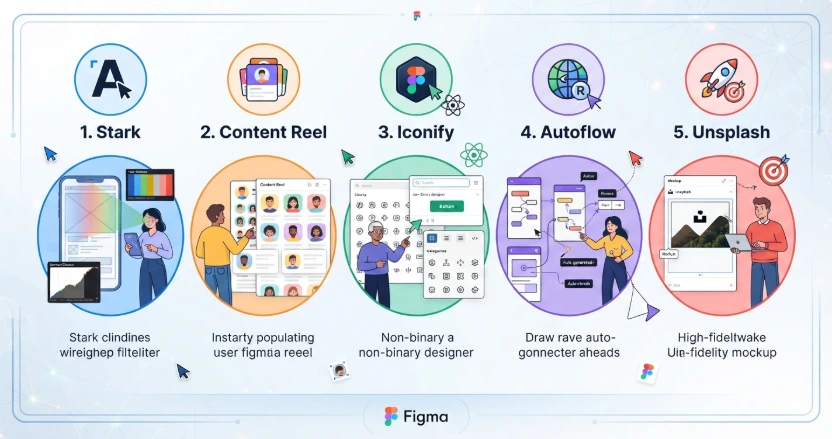
If you ask any seasoned UI/UX designer what makes Figma their primary workspace, they won't just talk about the auto-layout or real-time collaboration. They will point directly to Figma's plugin ecosystem.
Figma is an incredible design tool out of the box, but plugins are what turn it into an absolute powerhouse. They automate mind-numbing administrative tasks, instantly inject real data, and bridge the gap between static canvas designs and production-ready code. Without them, you are spending hours manually moving vectors and typing out placeholder copy instead of focusing on what actually matters: solving user problems.
Whether you are designing complex enterprise dashboards or mobile applications, these five industry-standard Figma plugins belong in your permanent, day-to-day toolkit.
The Essential Plugin Toolkit
These five plugins target different phases of the product design lifecycle, from initial user flows to final design-to-code handoffs.
1. Stark: Accessibility (a11y) Checks Built Directly Into Your File
Designing a product that isn't accessible to everyone is no longer just bad practice—it is a major business risk. Catching accessibility errors in production can delay product launches by weeks. Stark allows you to catch these issues in real time while you design.
What it does: It analyzes color contrast ratios against WCAG 2.2 standards, simulates multiple types of color blindness, and checks your typography size for legibility.
Why it is essential: It replaces guesswork with instant data. If your button text doesn't have a high enough contrast ratio against its background, Stark flags it immediately and even suggests a compliant alternative color with a single click.
2. Content Reel: Say Goodbye to "Lorem Ipsum"
Using generic placeholder text is a major pitfall in UI design. It hides real-world spacing issues and makes client presentations feel clinical and abstract. Created by Microsoft, Content Reel ensures your mockups look completely authentic.
What it does: It instantly populates your text layers and image frames with realistic mockups—including real names, emails, profile pictures, addresses, and custom business data.
Why it is essential: Stakeholders engage far more when they see a profile card with a realistic name and photo rather than "John Doe" and a gray avatar circle. It helps you design with the messy reality of dynamic content in mind.
3. Autoflow: Map Complex User Journeys in Seconds
A UI design is rarely a single, isolated screen; it is a journey. Explaining how a user moves from an onboarding screen to a checkout page is a massive part of the job. Drawing these transition lines manually is notoriously tedious.
What it does: You select two frames on your canvas, and Autoflow automatically draws a clean, customizable connector arrow between them.
Why it is essential: When you rearrange your frames to make room for new screens, Autoflow adjusts and redraws the paths automatically. It turns a manual layout chore into a 30-second workflow, giving you instantly clear sitemaps and wireflows for developers.
4. Design Lint: Keep Your Design Files Clean & Consistent
Even the most organized designers accidentally leave an unlinked color variable or an off-grid spacing value in their files. When developers inspect your design, these small discrepancies cause confusion and broken code. Design Lint acts as your personal, automated proofreader.
What it does: It scans your entire page, frame by frame, and flags every element that deviates from your design system (such as missing text styles, unlinked components, or non-standard border-radii).
Why it is essential: Running Design Lint before a developer handoff session eliminates the frustrating, repetitive back-and-forth loops where engineers have to ask, "Is this font style supposed to be new, or did you forget to link it to the style guide?"
5. Iconify: Instant Access to Over 100,000 Vector Icons
Searching the web for an icon, downloading the SVG, dragging it into Figma, and manually stripping out background elements is a massive flow-breaker. Iconify consolidates almost every major open-source icon set into one single search box.
What it does: It pulls vector icons directly from Material Design, Phosphor, Lucide, FontAwesome, and dozens of other popular libraries directly into your working file.
Why it is essential: It eliminates context switching. You can search, filter by style (outline, filled, thin, or bold), and drop scalable vectors onto your canvas in two clicks without ever leaving Figma.
Master Professional Workflows with Zen Institute
Knowing how to use Figma's tools is only half the battle. The true differentiator of a senior designer is knowing how to apply these tools to solve complex, real-world business problems.
If you are looking to break into the booming field of product design, our comprehensive UI/UX Design Course at Zen Institute Mangalore is built to bridge the gap between beginner skills and industry-ready expertise.
Guided step-by-step by elite mentors currently leading design teams at top global MNCs, you will go far beyond basic tool tutorials. You will learn to construct comprehensive design systems, map complex user psychology, conduct high-impact usability tests, and build a highly professional, job-ready portfolio.
With live project collaborations, professional resume development, and direct placement support within our extensive hiring network, we provide you with everything you need to launch a rewarding creative career.
Frequently Asked Questions (FAQs)
1. What are Figma plugins, and why are they useful?
Figma plugins are extensions that add extra functionality to Figma. They help designers automate repetitive tasks, improve workflow efficiency, generate content, perform accessibility checks, and speed up the overall design process.
2. Which Figma plugins are best for beginners?
Some beginner-friendly Figma plugins include Stark for accessibility, Content Reel for realistic placeholder content, Autoflow for user flows, Design Lint for design consistency, and Iconify for accessing thousands of icons.
3. Are Figma plugins free to use?
Many Figma plugins offer free versions with essential features, while some also provide premium plans with advanced functionality. Beginners can accomplish most design tasks using the free versions.
4. Do UI/UX designers need to know Figma to get a job?
Yes. Figma is one of the most widely used UI/UX design tools in the industry. Proficiency in Figma, along with skills in wireframing, prototyping, and user research, is highly valued by employers.
5. How can I improve my UI/UX design skills with Figma?
Practice designing real-world projects, explore useful plugins, create interactive prototypes, follow design systems, and build a strong portfolio showcasing your design process and problem-solving abilities.